


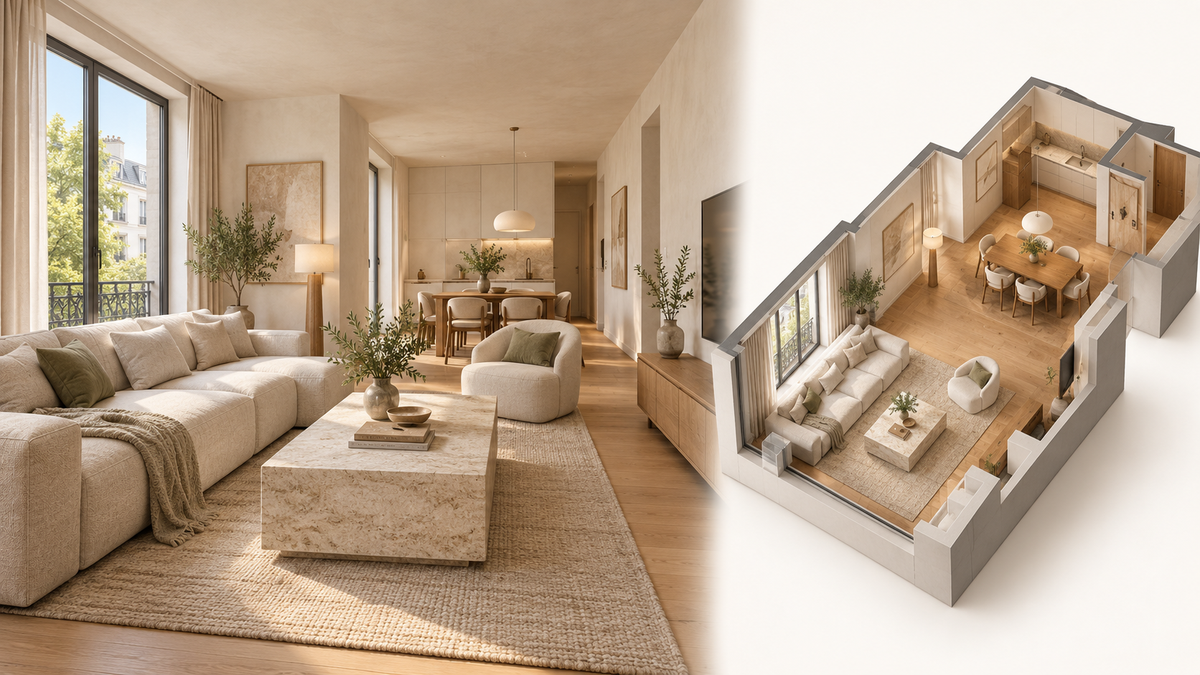
Realsee has rewritten its entire spatial renderer with WebGPU in pursuit of the ultimate 3D experience. The rewrite spans the full pipeline, from panorama and model views to high-resolution tiles, materials, plugins and image output.
Turning a panorama, zooming into a surface, moving between capture positions and switching to a textured model all make demands on the renderer. Annotations, video, measurements and guided navigation must stay connected to the right places as people explore. [1]
Detail resources must follow the current viewport, and material and color processing must stay consistent between imagery and models. The main player, spatial plugins, auxiliary canvases and screenshots also need shared rules for resources and output.
How WebGPU differs from WebGL and WebGL 2
WebGL, WebGL 2, and WebGPU all use the GPU to draw 3D scenes. WebGL 2 expands WebGL’s graphics capabilities: instanced drawing and multiple render targets become core features, alongside uniform buffers, 3D textures, and transform feedback. Transform feedback captures vertex-shader output in buffers for later processing. [2] [3]
WebGPU is designed for modern graphics APIs such as Metal, Vulkan, and Direct3D 12. It reorganizes pipelines, resource bindings, and command submission, and provides general-purpose GPU computation. [4]
| Comparison | WebGL | WebGL 2 | WebGPU |
|---|---|---|---|
| API model | OpenGL ES 2.0 | OpenGL ES 3.0 | Designed for modern GPU APIs |
| Core capabilities | Graphics rendering | Expanded graphics and data processing | Graphics rendering and general-purpose GPU computation |
| GPU data processing | Algorithms organized around shaders and textures | Transform feedback can also capture vertex results | Compute pipelines, read/write storage buffers, and workgroups |
| Application-side task organization | Change context state and issue draws | The same model, with additions such as uniform buffers | Explicit pipelines and resource bindings; encode commands and submit them to a queue |
| Shading language | GLSL ES 1.00 | GLSL ES 3.00, with 1.00 support retained | WGSL |
Organize and reuse draw state explicitly. WebGPU groups shaders, vertex layouts, depth state, and blending state into pipeline objects. [5] Draws select a pipeline and bind resources, allowing fixed configuration to be reused across tasks. Command buffers give browsers and drivers a batch of work to schedule. Chrome identifies reduced JavaScript workload for the same graphics as a principal benefit of WebGPU. [6]
Give graphics and computation their own programming models. Compute pipelines, storage buffers, and indirect dispatch support parallel data processing and additional rendering algorithms. [5] Everyday panorama and textured-model viewing primarily uses the graphics pipeline: the CPU organizes resources for the current view, and the GPU samples images, evaluates materials, and draws the scene.
Carry extended brightness into canvas output. Panoramas with HDR data need to retain their recovered highlight values through rendering. A half-float WebGPU canvas with extended output mode can present those values in a compatible HDR display environment. [7] The panorama’s brightness information can then remain part of the final presentation.
How panoramas and models form the view
Panoramic photographs supply surface color, while the model supplies spatial positions and shape. Model materials determine where to sample using the surface position and the panorama’s capture position and orientation. They combine that panorama color with the model’s own material output. A panorama background also fills the view beyond the model’s surfaces.
A transition between capture positions coordinates camera movement and imagery. Resources from the previous and next panoramas participate in the material update. Camera position, orientation, and field of view change according to the selected movement effect, while the two sets of panorama colors follow the transition rules. Moving into a model view adjusts the balance between panoramic and model-material output, shifting attention from photographic detail to the overall structure. Material migration has to preserve those sampling relationships and transitions together.
Load detail for the current view
The required panorama detail depends on field of view, canvas dimensions, and pixel ratio. We use those inputs to choose a tile level. The CPU then checks which tiles intersect the viewing frustum. Requests prioritize lower levels first and, within a level, areas nearer the center of the view, with a limit on concurrent loads. Zooming into a window or wall therefore prioritizes the detail needed for the current view.
The base panorama provides a complete image while newly loaded tiles fade in. The base and available high-resolution tiles are drawn into a detail texture for the current viewing direction. Main-scene materials sample it using the corresponding projection. This view-detail texture and the final scene image serve different purposes: the former adds detail to panorama materials; the latter holds the scene-rendering result for output and post-processing.

The view-detail texture feeds panorama materials; the scene image feeds output and optional post-processing.
What the full rendering migration involves
Realsee’s migration covers the main tour, spatial plugins, floor plans, guided navigation, minimaps, product and model previews, and screenshot and cover-image output. Some components have their own cameras and canvases; others depend on established material, color, and capture behavior. All of these entry points have to work with the new rendering system.
Preserve visual behavior while changing materials
Three.js uses node materials in its WebGPU renderer, requiring existing custom GLSL materials to be ported to the Three.js Shading Language (TSL). TSL describes shading as a composition of nodes and can generate WGSL or GLSL for the selected backend. [8]
We migrated materials for panorama video, guide lines, minimap model backgrounds, and particles while preserving their projection, masking, fades, and depth behavior. Measurement lines expose an easily missed state: the user has started measuring, but the first segment is not complete. The geometry must already have a valid input layout, with zero visible instances until both endpoints are available.
Dependencies across packages need the same attention. The host supplies Three.js to the main engine and spatial plugins. Plugin builds leave this dependency external, and the host defines its version and resolution entry. Independent model previews register the same model-material mappings as the main engine, connecting loaded models to the corresponding node materials.
Check color and transparency throughout composition
A video can appear brighter after a renderer change. One cause we traced was sRGB-encoded video being treated as linear color and encoded again on output. We addressed it by declaring the video texture’s color space, giving input decoding and final output conversion distinct roles. The Three.js video-texture documentation specifies this input requirement. [9]
Transparent media, guide lines, and saved annotations must also blend with the background. Transparent media set blending for color and alpha separately, while lines retain the background already drawn. Saved annotations handle working-space and display encoding at the composition boundary, preserving the meaning of stored colors. Input color, the linear working space, and display encoding need to agree; changing brightness alone can hide an error in those conversions. [10]
Manage initialization, teardown, and device recovery
WebGPU renderer initialization is asynchronous. [8] Model previews and standalone compasses wait for it before creating dependent resources or drawing. When a user quickly switches previews, a loaded model must still belong to the current request. Expired results are disposed of, leaving the current view to respond to the latest action.
Closing a product preview first cancels requests and animations and removes listeners. The instance and canvas are released after initialization settles. GPU device loss follows a different recovery sequence. The main view saves the browsing state, releases the old session, and creates a new one, restoring the view and floor as resources load. Plugin canvases using our shared wrapper for standalone rendering rebuild their renderers, restore size, pixel ratio, and transparent background, and replace the displayed canvas once the new instance is ready. The main view and these plugin canvases each rebuild the resources they own.
Carry the rendered image through to screenshots
This capture path renders the requested region into an RGBA8 target, then reads the pixels asynchronously from the GPU to the CPU. When WebGPU’s copyTextureToBuffer copies multiple rows of these pixels, the row stride must be a multiple of 256 bytes. For example, a 100-pixel-wide RGBA8 image has 400 bytes of color data per row and can use a 512-byte copy stride. Image processing then needs the 400 useful bytes from each row. [5]
The readback layer checks the returned data length: it copies tightly packed data directly and extracts useful pixels row by row when padding is present. The host then normalizes row orientation for the backend behavior of the SDK in use. Crop coordinates retain their bottom-origin convention, while output rows run from top to bottom for the image canvas. Crops and cover images share this adapter, and helper elements hidden for capture are restored afterward.
Reuse an image while it is still valid
Image reuse and on-demand updates apply to both WebGL 2 and WebGPU; the renderer defines their update rules. A camera can remain still while an animated effect continues to run. Rebuilding the whole scene each time the effect updates would repeat work whose result has not changed.
We render the scene into an intermediate image and apply post-processing effects afterward. While the scene image remains valid, those effects can continue using it.
Updates follow these rules:
| Change | Required work |
|---|---|
| Camera or scene changes | Rebuild the scene image for the new view |
| An image loads or a video frame arrives | Request an update to include the new content |
| At least one effect remains enabled, and the number of active effects or required input types changes | Prepare the corresponding composition result again |
| The last post-processing effect is disabled | The application requests an update to present the image without that effect |
| Viewport size changes | Rebuild output resources and compose at the new size |
| Only an animated post-processing effect changes | Reuse the scene image and continue updating the effect |
The caller must request a frame when switching effects. When the last post-processing effect is disabled, that frame presents the image without it. Afterward, with post-processing disabled and the scene unchanged, the renderer can skip drawing another frame. Any effects still enabled continue to read the retained scene image, with new commands encoded and submitted as needed.
Keeping intermediate images consumes GPU memory, and the format affects the amount of data read and written. Consider the texture that holds the color output—a color attachment—at 1920 × 1080, with one layer, one sample per pixel, and no mipmaps. RGBA8 has four 8-bit channels; RGBA16F has four 16-bit floating-point channels. Counting texels—the texture’s pixels—gives: [5]
| Color format | Bytes per texel | width × height × bytes |
Storage |
|---|---|---|---|
| RGBA8 | 4 | 1920 × 1080 × 4 | About 7.9 MiB |
| RGBA16F | 8 | 1920 × 1080 × 8 | About 15.8 MiB |
One MiB is 1,048,576 bytes. Depth, additional buffer copies, other attachments, and allocation alignment add to these amounts. Doubling both dimensions quadruples the color storage for the same format. These figures describe color-texel storage. Read and write costs also depend on how the rendering sequence accesses those textures. Choosing an output precision involves both capacity and access patterns, alongside the quality, memory, and bandwidth tradeoff described by Three.js. [11]
Tile resources have their own reuse policy. Recently used tiles can keep supplying textures while they remain in the cache; resources are released after they fall outside it. When a texture object is needed, the reuse pool matches dimensions and color space. Loaded detail can stay available while color images and data textures retain the correct interpretation.
Keep video moving in an on-demand renderer
An on-demand renderer needs to know when the scene changes. A video inside a panorama produces new content even while the camera is still, so the media component must notify the renderer.
A playback event does not always mean that a frame is ready to draw. Our component checks for a usable frame and verifies that the video belongs to the panorama being viewed before adding it to the scene. During playback, the component keeps requesting scene redraws and marks the video texture for update when it has not advanced. The media can then keep moving even when the camera is still.
Pausing cancels the rendering schedule used during playback. Destroying the component releases its video texture, geometry, and material. Late play, pause, or unload events are handled against the component’s current state so that an earlier playback session does not interfere with the new image.
Supporting WebGPU and WebGL 2
WebGPU availability depends on the browser, operating system, and GPU. The browser must expose the API and provide a usable GPU device with the required capabilities. [6] [4]
The Three.js WebGPU renderer supports both WebGPU and WebGL 2 backends. [11] Realsee retains corresponding rendering paths and checks the active backend after initialization. Panoramas, models, and spatial components use compatible materials and resources; screenshot output is adapted to that backend as well.
The application connects view movement, mode changes, and media updates to the selected backend. The same content can use different drawing methods, with individual effects matched to the capabilities of that path.
Try the WebGPU packages on npm
Start building spatial viewing with Five WebGPU on npm. The core SDK publishes its WebGPU version through the alpha channel. This article uses 1.0.0-alpha.11 with three@0.183.2. [12]
npm install --save-exact three@0.183.2 @realsee/five-webgpu@1.0.0-alpha.11
For spatial tags, measurement, guided navigation, and other plugins, add the WebGPU version of Dnalogel. This article uses 4.0.0-webgpu.6, with the same Three.js instance as the core SDK. [13]
npm install --save-exact @realsee/dnalogel@4.0.0-webgpu.6
Explore public restaurant, residential, museum, and retail tours on Realsee Discover. [14]
Visit the Realsee Developer Platform to explore its spatial viewing capabilities and build your own applications.
References
- [1] Realsee Developer Platform
- [2] WebGL — Khronos specification
- [3] WebGL 2.0 — Khronos specification
- [4] WebGPU Explainer — GPU for the Web Community Group
- [5] WebGPU — W3C
- [6] Overview of WebGPU — Chrome for Developers
- [7] HDR support with canvas tone mapping — Chrome for Developers
- [8] WebGPURenderer — Three.js migration guide
- [9] VideoTexture — Three.js documentation
- [10] Color Management — Three.js manual
- [11] WebGPURenderer — Three.js documentation
- [12] Five WebGPU — npm 1.0.0-alpha.11
- [13] Dnalogel WebGPU — npm 4.0.0-webgpu.6
- [14] Realsee Discover — Public virtual tour collection