

A Realsee virtual tour helps people explore a real space online. But the captured space can continue to create value after the tour is published. In this project, we explored what happens when a Realsee-captured interior becomes the starting point for an AI-assisted Blender workflow.
Using GPT‑6 Astra with Blender, we worked from available Realsee Galois outputs to build an editable Blender-native version of the space. These outputs can include reconstruction models, point clouds, panoramas, and CAD or floor-plan references. Instead of treating the original scan as a fixed mesh, we created a scene where walls, floors, ceilings, doors, windows, materials, lights, and cameras could be reviewed and adjusted independently. From a published virtual tour to an editable 3D scene for design studies, renders, and walkthroughs.

Explore the original Realsee online tour
Quick Recap
-
Starting point: A real space captured with Realsee.
-
Input package: Available Realsee Galois outputs, such as reconstruction models, textures, point clouds, panoramas, and CAD or floor-plan references.
-
AI workflow: GPT‑6 Astra uses the downloaded source files as references while operating Blender (tested using GPT‑6 Astra via Codex environment).
-
Result: An editable Blender-native scene with separate architectural elements, including walls, floors, ceilings, doors, windows, materials, lights, and cameras.
-
What it enables: Material studies, layout changes, interior renders, and editable walkthrough videos.
-
Important: The original Realsee model remains available as a reference, while human review guides accuracy and final quality.
What You Need to Start?
-
A Realsee project with downloadable Galois outputs.
-
A local Blender installation.
-
GPT-6 Astra running in Codex (or an equivalent execution environment with access to your local project directory and Blender installation).
-
One organized project folder that keeps models, textures, point clouds, panoramas, and layout references together.
What Are Realsee Galois Outputs?
Realsee Galois outputs are downloadable files created from a Realsee space capture. They can provide a 3D reconstruction model, associated textures, point clouds that represent measured spatial surfaces, panoramas that show the space from captured viewpoints, and available CAD or floor-plan references.
Each output adds a different type of reference for an editable Blender reconstruction.
| Realsee Galois Output | What it can help with |
|---|---|
| 3D reconstruction model & textures | Understanding the overall form of the captured environment and keeping a visual 3D reference in Blender |
| Point cloud data | Checking walls, floors, ceilings, surfaces, room proportions, and structural alignment |
| Panoramas | Matching material appearance, lighting, decorative details, room connections, and viewpoint-specific features |
| CAD files or floor plans | Clarifying room layout, wall lines, doors, windows, openings, and circulation paths |
(Optional visual context: If you also happen to have RAW images, cube-map faces, or video captures, you can add those to the input folder. GPT-6 Astra can consult them when specific geometry, materials, or objects need closer review.)
A model can show the overall space. A point cloud can support structural interpretation. A floor plan can clarify the layout. Panoramas can help validate what the room should look like from key viewpoints.
Together, these outputs give GPT‑6 Astra more than visual inspiration. They provide a reality-based spatial reference package for Blender reconstruction. Realsee captures the real space via Galois, the platform provides the reconstruction outputs, and GPT‑6 Astra helps turn those outputs into an editable Blender production scene.
Why Build a Native Blender Scene?
You can import a Realsee reconstruction model into Blender as a visual reference. However, an imported scan mesh is not always convenient when you want to make practical changes to a space.
For example, a design or visualization team may need to replace one wall finish, test several flooring options, hide the ceiling to inspect the plan, adjust a door opening, move furniture, revise lighting, or animate a walkthrough camera.
A Blender-native reconstruction makes these elements independently editable.
The original Realsee reconstruction can remain in the Blender project as a separate, hideable reference collection. This gives you a practical working model: use the original scan to compare against reality, and use the Blender-native objects for editing and production.
How Does the Realsee Galois-to-Blender Workflow Work?
The workflow begins with a Realsee project and ends with a reusable Blender scene.
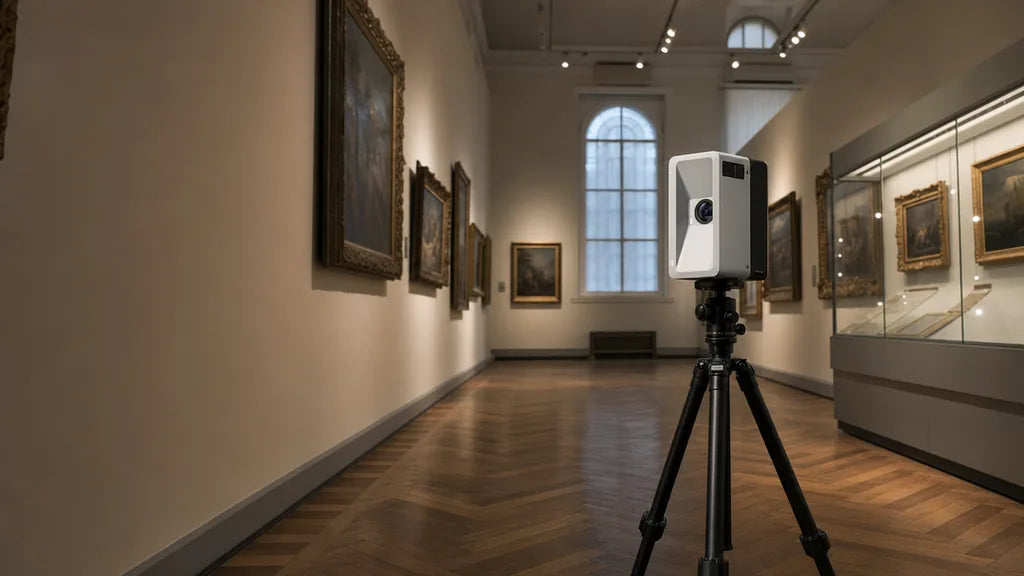
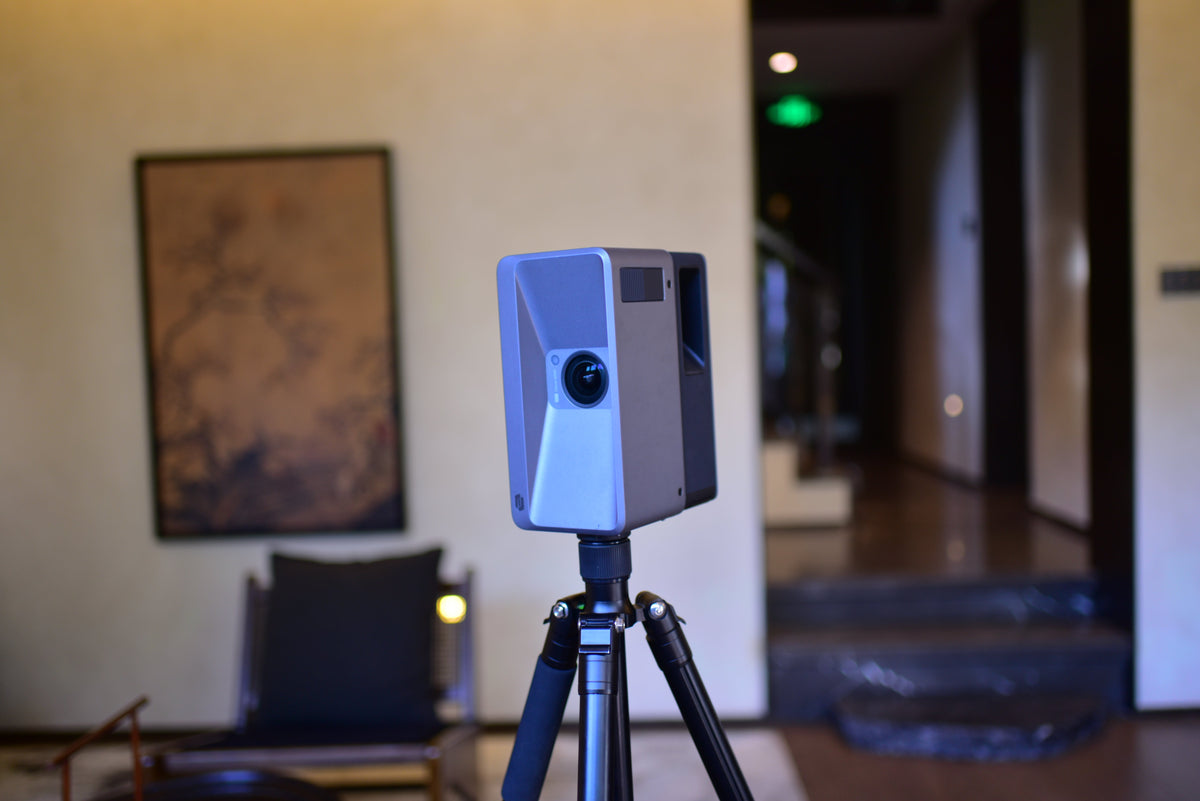
Capture a real space with Realsee Galois P4
↓
Download available Realsee outputs
↓
Organize models, textures, point clouds, panoramas, and CAD references
↓
Use GPT‑6 Astra (via Codex) with a local Blender installation
↓
Build and review a Blender-native architectural scene
↓
Edit materials, layout, furniture, lighting, cameras, and walkthroughs
1. Download the available Galois outputs
Open your VR project in the Realsee workspace. Choose Add-ons, select Model and the formats you need, then submit the task and download the result.
Start with the complete folders whenever possible. Keep models and their accompanying texture directories together, since some model formats rely on external texture files.
Useful Realsee guides:
2. Use Galois outputs as Blender references
GPT‑6 Astra can work with the source folder and a local Blender installation to inspect available assets, prepare scripts, generate scene objects, create previews, and refine the result through natural-language feedback.
The workflow is not one-click reconstruction. It is a staged, reviewable process:
-
Inspect the data package.
-
Build the room layout and architectural shell.
-
Create plan and perspective previews.
-
Compare the Blender scene against the original Realsee references.
-
Fix room connections, walls, openings, and ceilings.
-
Refine materials, lighting, furniture, cameras, and presentation assets.
For the complete setup instructions, source-folder structure, execution details, and technical implementation, read the Realsee Astra Blender technical tutorial.
3. How Should You Build the First Blender Version?
For the first version, focus on the architectural structure:
-
Room layout and connections between areas
-
Walls, floors, ceilings, doors, windows, and openings
-
Relative scale and proportions
-
Major fixed elements before furniture and decoration
The goal is to create a scene where architectural objects are easy to select and revise. Furniture, small objects, and detailed styling can be added after the room relationships and main geometry have been reviewed.
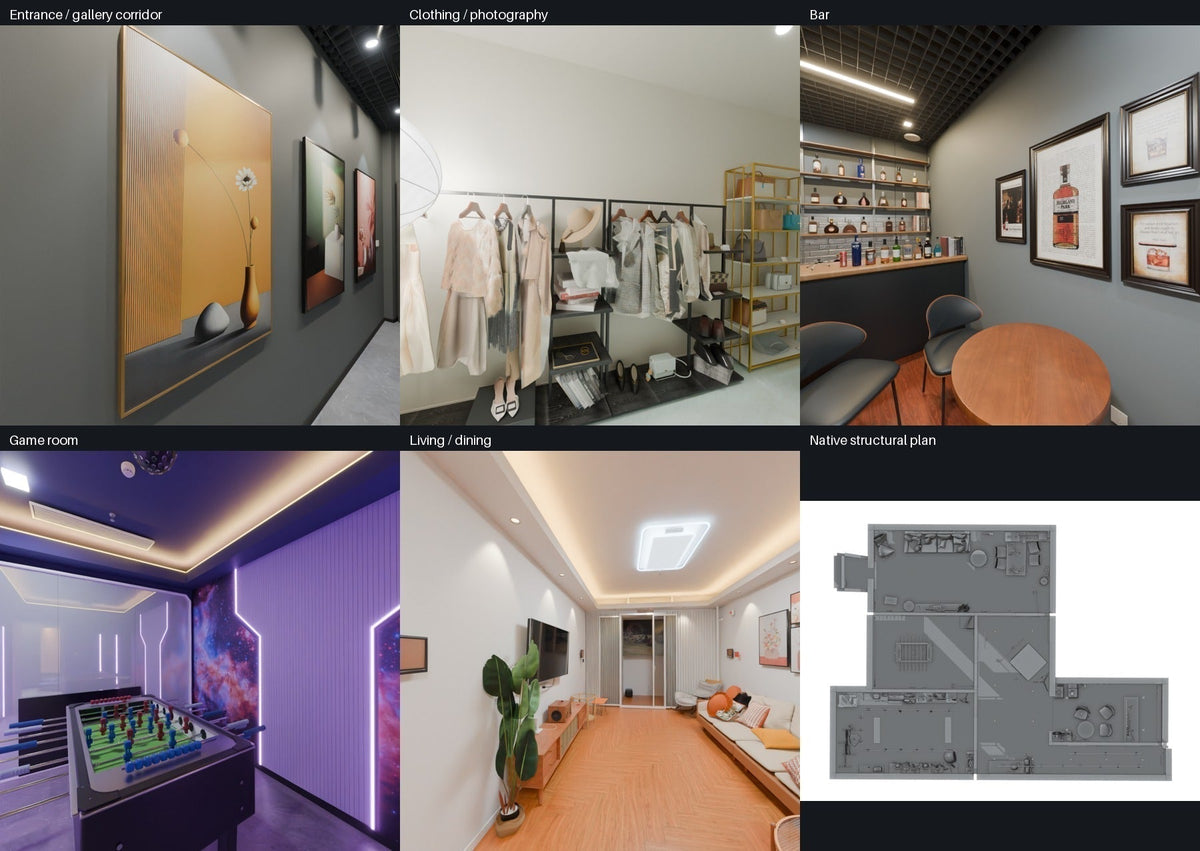
Top-down view of the editable Blender-native structural plan. With the ceiling hidden, the room layout, corridor connections, major openings, and furniture zones are easier to review.

4. How Do You Validate the Blender Layout?
Before refining materials or producing polished renders, inspect the space as a plan and as a set of simple perspective views.
Ask practical questions:
-
Are all major rooms included?
-
Does the corridor connect to the right areas?
-
Are major openings in the correct locations?
-
Are the walls, floors, and ceilings broadly consistent with the source?
-
Can walls, floors, doors, windows, and ceilings be selected separately?
-
Does the overall plan reflect the original Realsee space?
A top-down structural plan is especially useful at this stage. It helps teams verify circulation, room connections, opening locations, and the relationship between fixed architecture and furniture before spending time on visual detail.
You can guide the next iteration with simple feedback, such as:
“Hide the furniture and show a plan view of the entire space. Focus on the connections between the corridor and the adjacent rooms.”
Or:
“Check the opening between the photography room and the corridor against the original panorama. Fix the nearby walls, opening shape, and ceiling before adding decorative details.”
5. How Do You Compare Blender Renders with Realsee Panoramas?
Once the structure is in place, use panoramas to refine the visual side of the scene.
Source panoramas are useful for checking:
-
Wall, floor, and ceiling colors
-
Surface finish and texture scale
-
Main lighting direction and brightness
-
Ceiling grids, spotlights, and cove lighting
-
Door and window proportions
-
Furniture placement and key decorative details
Create Blender renders from similar viewpoints, then compare them side by side with the Realsee source images. This makes small but important differences easier to spot.
Realsee source panoramas beside matching Blender-native renders. Comparing the two helps identify remaining differences in geometry, openings, materials, lighting, and ceiling details.

What Can You Create Next?
Once the Blender project contains separate native architectural objects, the original captured space becomes easier to reuse for new visual and design tasks.
You can use the editable scene to:
-
Test alternative wall, floor, and ceiling finishes.
-
Create design concepts for renovation, staging, or presentation.
-
Compare furniture layouts while keeping the underlying real-space structure.
-
Produce interior renders from multiple viewpoints.
-
Create walkthrough videos with editable camera paths.
-
Hide ceilings or furniture for plan-view reviews.
-
Prepare a reusable base scene for visualization, animation, or interactive-content workflows.
-
Keep the original Realsee reconstruction available as a reality-based reference while you test new ideas.
In this project, the workflow produced an editable native Blender scene and an 85-second walkthrough video. The case files include code, previews, model outputs, and video materials.
Frequently Asked Questions
1. What Realsee Galois outputs are useful for Blender reconstruction?
The most useful inputs are the outputs available for your specific Realsee project: a reconstruction model and textures for the overall visual reference, point clouds for walls, floors, ceilings, and proportions, panoramas for material and lighting comparison, and CAD or floor-plan data for room layout, wall lines, doors, windows, and openings.
2. Can GPT‑6 Astra directly turn a Realsee virtual tour into a Blender scene?
This workflow uses downloadable Realsee Galois outputs as local reference files. GPT‑6 Astra can inspect those available files and work with a local Blender installation to build and refine an editable scene. The online virtual tour remains useful for exploring and comparing the original space, but the Blender workflow is based on the downloaded Galois outputs.
3. What is a Blender-native scene?
A Blender-native scene is a Blender project built with separate, editable objects rather than only one imported scan mesh. For example, walls, floors, ceilings, door frames, doors, windows, lights, cameras, and materials can be organized so they can be selected and changed independently.
4. Is the Blender scene fully editable?
The goal of this workflow is to create an editable scene in which the main architectural elements can be adjusted independently. You can change wall and floor materials, hide ceilings for plan review, revise doors or openings, move furniture, adjust lighting, and update cameras or walkthrough routes. The level of detail and accuracy depends on the available reference data and the review process.
5. Do I still need to review the AI-assisted reconstruction?
Yes. GPT‑6 Astra can help inspect references, create a first version, generate previews, and make iterative changes in Blender. Human review remains important for checking room proportions, corridor connections, wall openings, ceiling details, materials, lighting, and final presentation quality.
6. Can I keep the original Realsee model in the Blender project?
Yes. Keep the original Realsee reconstruction model in a separate, hideable Blender collection. This lets you compare the editable Blender-native scene with the captured-space reference whenever you need to check structure, proportions, or visual details.
7. What can I create with an editable Blender scene?
An editable Blender scene can support material studies, layout options, staging concepts, interior renders, camera walkthroughs, design presentations, and other visualization or animation workflows. You can continue using the same captured-space reference while testing new ideas over time.
What Happens After the Realsee Tour Is Published?
A Realsee virtual tour helps people explore a real space. Realsee Galois outputs extend the value of that capture by making its spatial information available for new workflows.
With GPT‑6 Astra and Blender, those outputs can support an AI-assisted path from a captured space to an editable 3D production scene. The resulting Blender project can be reviewed, changed, rendered, animated, and adapted over time.
The workflow still benefits from human review—especially for room proportions, openings, material accuracy, and final production quality. But it offers a practical way to begin with the structure and visual context of a real space rather than starting from an empty file.
Ready to capture your space with millimeter-level precision?
Learn more about Galois P4 →