

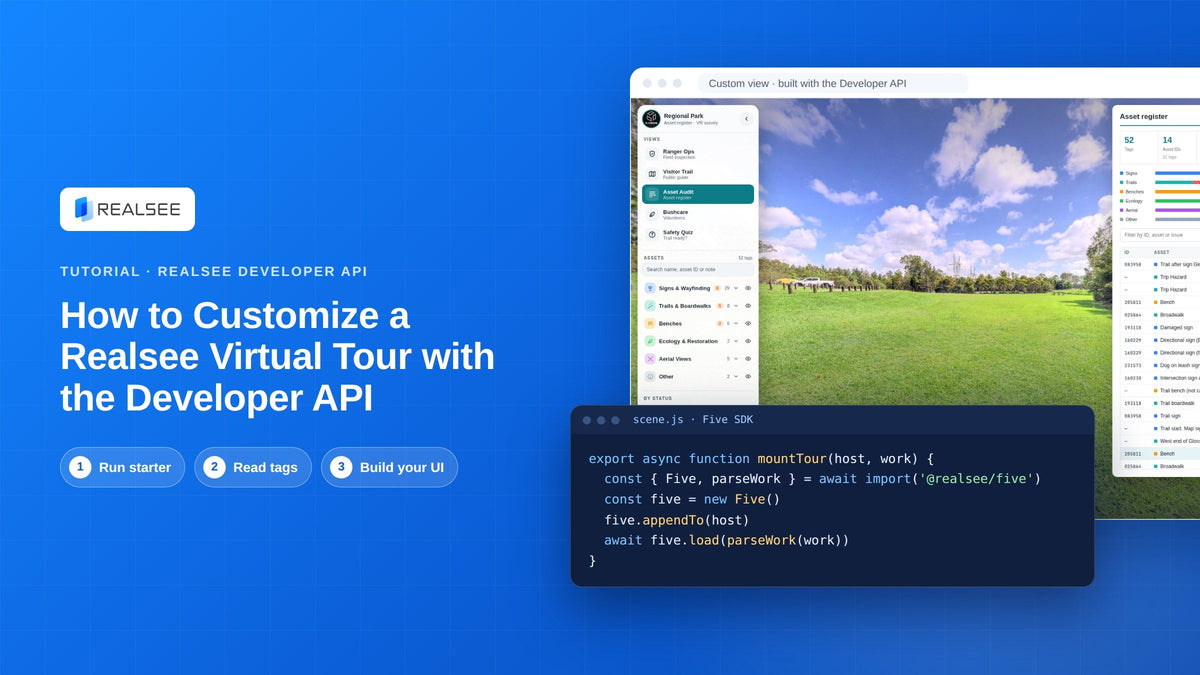
To customize a Realsee virtual tour, start from the official Realsee Immersive VR Starter, connect it to your Team with a Realsee Developer app, read your tour's data through the OpenAPI on a server, and build your own interface around the Five SDK viewer. You can change the layout, branding, menus and camera flow, and turn the tour's existing tags into your own views. API keys stay on the server. The KYBOS park project used this method to turn 52 tags into five custom views, built in two working sessions by a non-developer with an AI coding assistant.
What can you customize in a Realsee virtual tour?
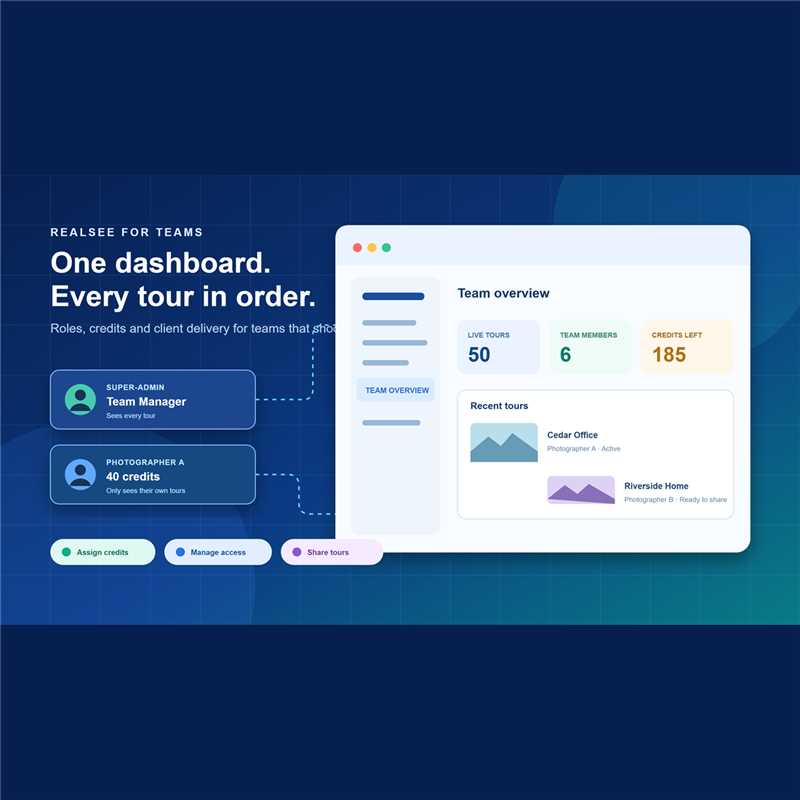
The Realsee Developer Platform splits the work into layers. Five SDK renders the scene, and you own the app around it: the interface, camera flow, annotations and the connection to your data.
| Layer | What it does | What you can change |
|---|---|---|
| Five SDK | Renders the captured space in the browser | Camera position, panorama, 3D model and floor plan modes, navigation and events |
| Dnalogel | Spatial interface extensions built on Five | Tags, measurements, mini maps and other in-scene controls |
| Vreo | Guided spatial stories | Timed camera moves, captions, narration and effects |
| OpenAPI | Connects your server to your Team's data | Which tours you list, which tour you load, and how you use its hotspot tags |
| Your UI | React, Vue or native TypeScript | Branding, menus, panels, filters, colours and layout |
What do you need before you start?
- Node 24 and npm on your computer
- A browser with WebGL
- A Realsee Team with at least one tour
- A Developer app for that Team (14-day trial)
- An AI coding tool with terminal access (optional)
- A host with server functions, such as Vercel
How to customize a Realsee virtual tour, step by step

- Run the official starter. Download the Realsee Immersive VR Starter, or copy the setup prompt from the Five SDK Quickstart into your AI coding tool. Choose React, Vue or native TypeScript, then run the public demo first so you know the viewer works.
-
Connect your Team. Run the device authorization helper. It prints a link and an eight-character code. Sign in, choose the Team that owns your tours, select your app and click Authorize agent. The helper writes the keys into a local
.envfile. Restart the app, open Spaces and pick one of your own tours. - Read your tour's data on the server. Your server exchanges the app key and secret for an access token, lists your Team's tours, loads the selected tour's Work data and reads its hotspot tags. All of these calls stay on the server, never in the browser.
- Organise the data. Decide what your users need to see. Group tags by category, pick out issues and IDs from the tag notes, and sort them in the order each user needs.
-
Design your interface. Edit the UI entry file for your framework, plus
src/styles.css. Add your branding, menus and panels, and use Five SDK to move the camera to a tag when someone clicks it. - Publish securely. Deploy to a host with server functions, add your keys as environment variables, and add your site's domain to the allowed VR domains for your app. Test the live link after a few minutes to make sure the scene still loads.
Step 1: Run the starter
Open a terminal in the extracted realsee-immersive-vr folder and run:
npm run setup -- --framework react
npm ci
npm run check
npm run dev
Open http://127.0.0.1:5173. You should see a full-screen tour that you can drag, walk through and switch between Panorama and Floorplan.
Step 2: Connect your own tours
npm run configure -- --deviceKeep the command running while you approve the request in your browser. The code expires after ten minutes. When it finishes, your .env file holds REALSEE_APP_KEY, REALSEE_APP_SECRET and REALSEE_TEAM_SOURCE. Never paste these values into an AI chat, a screenshot or browser code. Full details are in the Team API Quickstart.
Step 3: Read the tour data on the server
This simplified server function shows the read-only sequence. It uses the gateway https://app-gateway.realsee.ai.

app_key and app_secret as form data from your server. Use Try it to test a request before you write code.const GATEWAY = 'https://app-gateway.realsee.ai';
// 1. Exchange the app key and secret for an access token
const tokenRes = await fetch(GATEWAY + '/auth/access_token', {
method: 'POST',
headers: { 'content-type': 'application/x-www-form-urlencoded' },
body: new URLSearchParams({
app_key: process.env.REALSEE_APP_KEY,
app_secret: process.env.REALSEE_APP_SECRET,
}),
}).then(r => r.json());
if (tokenRes.code !== 0) throw new Error('token'); // HTTP 200 alone is not success
const token = tokenRes.data.access_token; // raw token, no "Bearer" prefix
// 2. List your Team's tours
const list = await fetch(GATEWAY + '/open/v3/custom/search', {
method: 'POST',
headers: { 'content-type': 'application/json', Authorization: token },
body: JSON.stringify({ source: process.env.REALSEE_TEAM_SOURCE, page: 1, page_size: 24 }),
}).then(r => r.json());
const tour = list.data.list[0];
// 3. Load the tour's Work data for Five SDK
const work = await fetch(
GATEWAY + '/open/v3/vr/info?resource_code=' + encodeURIComponent(tour.resource_code),
{ headers: { Authorization: token } },
).then(r => r.json());Read the hotspot tags the same way, using the hotspot endpoint in the OpenAPI Endpoint Reference. Each tag includes its name, its note and its 3D position in the tour.

Step 4: Turn tags into structured data
Tags are free text, so a few simple rules go a long way. This example finds an asset ID and an issue type in each tag.
const SAFETY = /trip hazard|unsafe|danger|broken/i;
const MAINTENANCE = /repair|replace|clean|faded|loose/i;

function describeTag(tag) {
  const text = `${tag.name} ${tag.description || ''}`;
  return {
    ...tag,
    assetId: text.match(/\b[A-Z]{2}-\d{3}\b/)?.[0] || null,   // e.g. SG-014
    issue: SAFETY.test(text) ? 'safety' : MAINTENANCE.test(text) ? 'maintenance' : null,
  };
}
Consistent tag wording makes this step reliable. Our park asset audit guide includes a tag template you can reuse.
Step 5: Load the scene and build your interface
Five SDK mounts the tour inside any container. Everything around it is your own UI.
export async function mountTour(host, work) {
  const { Five, parseWork } = await import('@realsee/five');
  const five = new Five({ imageOptions: { size: 1024 } });

  five.appendTo(host);
  await five.load(parseWork(work), 'initial');

  return () => five.dispose();
}
In the starter, edit src/frameworks/react/App.tsx (or the Vue or TypeScript entry), src/experience.ts for the shared viewer, and src/styles.css for the look. If you work with an AI coding tool, describe the change in plain words, for example "add a vertical menu on the left that lists every tag by category, and fly to the tag when I click it", then check the result in the browser.
Step 6: Publish without exposing your keys
Signed tour data is short-lived. In our project, the signed links expired after about five minutes, so a saved snapshot of the tour stopped working. The fix is a small server function that fetches fresh Work data every time someone opens the page.
- Add your keys as host environment variables
- Never put keys in
VITE_variables - Add your domain to the app's allowed VR domains
- Redeploy after you change any variable
- Add your own login before sharing private data
- Check the live link on desktop and mobile


Before launch, read the Five SDK production checklist. The starter is a local template, not a multi-user authorization service.
A real example: KYBOS park asset views
KYBOS is an Australian laser scanning and 3D capture company based in Kingscliff on the Tweed Coast, NSW. It documents construction sites, buildings, assets and public spaces across the Gold Coast, Brisbane and Northern NSW, and works with Realsee in Australia. KYBOS captured a regional park as a Realsee virtual tour and added 52 tags on site. Following the steps above, the Realsee team turned those tags into a searchable asset menu and five views for rangers, visitors, asset managers, volunteers and staff training.

No new data was captured. Every view reads the same live tags, so an update in Realsee shows up in all five. Read the KYBOS case study and try the interactive demo, or see how the same approach works for other sites in our guide to virtual tour asset management for parks and public spaces.
Common problems and fixes
| What you see | What to check |
|---|---|
| Configuration missing | Run device authorization again, or fill in the .env values locally, then restart the server. |
| Token failed | Check the app, the key and secret, and the gateway. A response with HTTP 200 can still contain an error code. |
| No tours listed | The call worked but returned nothing. Check the Team source and that the tour belongs to that Team. |
| Scene is blank on your live site | Add the site's domain to the app's allowed VR domains. |
| Scene stops loading after a few minutes | The signed data has expired. Fetch fresh Work data on the server for each visit. |
| Live site can't find the keys | Add the environment variables in your host and redeploy. |
What this method does and doesn't do
FAQ
Can I customize the interface of a Realsee virtual tour?
Yes. With the Realsee Developer Platform, you can build your own interface around a Realsee tour using Five SDK for the 3D viewer and the OpenAPI for your Team's data. You control the layout, branding, menus, camera flow and how tags are shown.
Do I need to be a developer?
It helps, but it isn't required. The KYBOS prototype was built by a non-developer on the Realsee team in two working sessions, using the official starter and an AI coding assistant. A production product with user accounts or saved data needs a developer.
Which frameworks does the Realsee starter support?
The Realsee Immersive VR Starter includes React, Vue and native TypeScript in one project. You choose one with npm run setup, and all three share the same Five SDK viewer and server code.
Do I need an account to try it?
No. The starter and the Playground run a public demo scene without an account or keys. You need a Team-owned Developer app, available as a 14-day trial, only when you connect your own tours.
Where should I keep my API keys?
On the server only. Store the app key and secret in a local .env file or in your host's environment variables. Never put them in browser code, VITE_ variables, URLs, screenshots or AI chats.
Why does my tour stop loading on my website?
Usually for one of two reasons. Either your domain isn't in the app's allowed VR domains, or the page is using signed tour data that has expired. Add the domain, and have your server fetch fresh Work data on each visit.
Can I use the tour's existing tags in my own interface?
Yes. Your server can read a tour's hotspot tags, including names, notes and 3D positions, through the OpenAPI. The KYBOS project used 52 existing tags to build an asset menu and five views without capturing anything new.
Is there a Realsee MCP server or CLI?
Not at the moment. You can use the official setup prompt, the machine-readable guides and the starter's terminal commands with your AI coding tool.
Start building with your own tours
Run the starter with the public demo today, or talk to Lutina about what you want to build. Developers can also ask questions in the Realsee Discord.