

To use a 3D virtual tour for a park asset audit, capture the park as a Realsee 3D virtual tour, tag each asset with an ID and a condition note, then filter those tags by type and status to build a visual asset register. With the Realsee Developer API, the same tags can power separate views for rangers, asset managers and volunteers. The tour does not replace site inspections, but it gives asset teams a shared, location-accurate record they can review without going back on site.
Why use a virtual tour for a park asset audit?
Park assets are spread out. Signs, benches, trail markers and ecology sites can sit kilometres apart, and a spreadsheet row or a single photo rarely shows where an asset is or what is around it. A Realsee 3D virtual tour puts every asset back in its real location, so anyone reviewing the audit can see the asset, its surroundings and its condition on the day of capture.
| Spreadsheet and photos | Realsee 3D tour with tags | |
|---|---|---|
| Location | Coordinates or a written description | The asset is shown in place in a walkable 3D scene |
| Context | One photo per asset | The surroundings, access path and nearby assets are visible |
| Review | Someone opens files one by one | Search, filter and fly to each asset in the tour |
| Sharing | Files sent by email | One link for rangers, contractors and managers |
| History | Photos stored in folders | Each capture is a dated record of the whole site |
How does this fit with asset management standards?
A virtual tour is a source of visual evidence, not an asset management system. It works alongside the frameworks park teams already use.
What do you need before you start?
- A list of the asset types you audit
- An asset ID format, for example SG-001 for signs
- Agreed condition words, such as safety and maintenance
- A 3D capture device that works outdoors
- A Realsee account to host and tag the tour
- Someone to review the tags after capture
How to run a park asset audit with a 3D virtual tour
- Define asset categories and IDs. Decide which asset types you will record and how each ID is written. Reuse IDs from your existing asset register where you can, so the tour and the register match.
- Capture the park. Walk the trails and capture each area as part of one Realsee 3D tour. Large parks may need several captures joined together; see how SneakPeak360 combined four captures into one 42,000 m² tour. For an overview of the whole site, you can also connect aerial panoramas to the 3D tour. For trail-specific guidance, IPWEA's Practice Note 10.6 covers trails, tracks and paths.
- Tag assets with an ID and a condition note. Add a tag at each asset. Use the same format every time, as shown in the template below.
- Review and clean the tags. Check for missing IDs, duplicates and inconsistent wording. Clean tags are what make filtering and reporting possible.
- Filter by category and status. Group tags by asset type, then by status, so safety issues and maintenance jobs are easy to find.
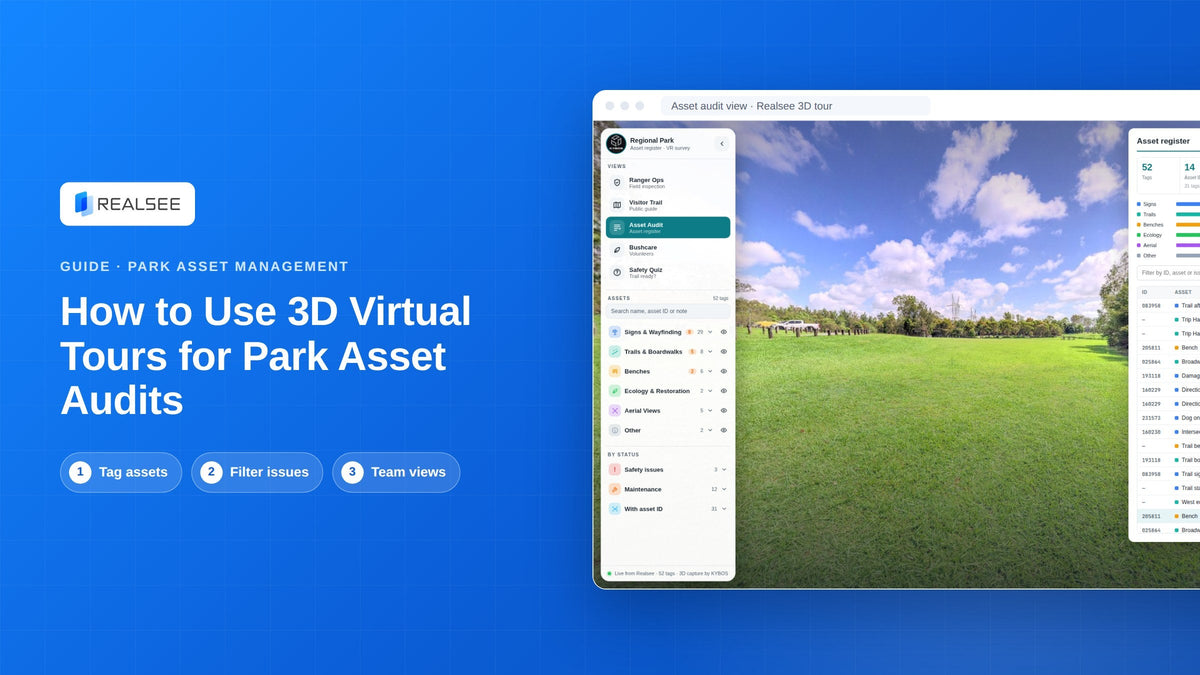
- Build views for each team. Rangers, asset managers and volunteers need different things from the same data. With the Realsee Developer API, each team can have its own view of the same tags. The Developer API tutorial walks through the steps.
- Share and re-capture. Share the tour link with the people who act on the audit, and re-capture on your inspection cycle so each tour becomes a dated record.
A tag template for asset audits
Put the asset ID first, then the asset type, then a short condition note. These examples show the format.
| Tag name | Tag note | Category | Status |
|---|---|---|---|
| SG-014 Trail sign | Faded text, replace | Signs | Maintenance |
| TR-003 Boardwalk | Loose board, trip hazard | Trails | Safety |
| BN-006 Bench | Needs pressure cleaning | Benches | Maintenance |
| EC-002 Weed area | Lantana regrowth near creek | Ecology | Monitor |
A real example: KYBOS and a regional park
KYBOS is an Australian laser scanning and 3D capture company based in Kingscliff on the Tweed Coast, NSW. It documents construction sites, buildings, assets and public spaces across the Gold Coast, Brisbane and Northern NSW, and works with Realsee in Australia. KYBOS captured a regional park as a Realsee virtual tour with 214 capture points and added 52 tags on site. Using the Realsee Developer API, those tags were turned into a searchable asset menu and five views for different park users.


The 15 issues split into 3 safety and 12 maintenance items, all found from notes already written in the tags. Read the full KYBOS case study and try the interactive demo.
What a virtual tour can and can't do in an audit
FAQ
Can a 3D virtual tour replace an on-site park asset audit?
No. A Realsee 3D virtual tour supports a park asset audit but does not replace it. It records where each asset is and what it looked like on the day of capture, so teams can plan, review and report remotely. Ground conditions, structural safety and anything that needs touching or testing still need someone on site.
What park assets can be recorded in a virtual tour?
Any asset visible in the capture can be tagged, including signs, trails and paths, benches, shelters, play equipment, bins and ecology features. In the KYBOS project on Realsee, 52 tags covered signs, trails, benches, ecology notes and aerial views.
How should tags be named for an asset audit?
Put the asset ID first, then the asset type, then a short condition note, for example "SG-014 Trail sign: faded text, replace". A consistent format lets the tags be searched, filtered and counted later.
Can issues be filtered by safety or maintenance?
Yes, if the tag notes use consistent words such as "safety" or "maintenance". With the Realsee Developer API, a custom view can read the tags and group them by status. The KYBOS view flagged 15 issues this way: 3 safety and 12 maintenance.
How does a virtual tour fit with ISO 55000 or IPWEA guidance?
A virtual tour is a source of visual evidence, not an asset management system. ISO 55000 sets out the principles of asset management, and IPWEA Practice Note 10.1 covers park asset inventories and condition assessment. A tagged Realsee tour can support the inventory and condition records those frameworks rely on, while the grading method and the asset register stay in your existing system.
Do I need a developer to build an asset view?
Not necessarily. The KYBOS prototype was built by a non-developer on the Realsee team using the Realsee Developer API, an official starter template and an AI coding assistant. A production system that saves inspection results would need further development. Our Developer API tutorial explains the method.
How often should a park be re-captured?
It depends on how quickly the site changes and how often the asset team reviews it. Many teams line re-capture up with their existing inspection cycle, so each tour is a dated record that can be compared with the last one.
References
- ISO. ISO 55000:2024 Asset management: Vocabulary, overview and principles.
- Institute of Public Works Engineering Australasia. Practice Note 10.1: Parks Management, Inventories, Condition and Performance Assessment.
- Institute of Public Works Engineering Australasia. Practice Note 10.6: Trails, Tracks and Paths.
Build an asset view for your parks
Turn tagged Realsee tours into asset views with the Developer API, or talk to Lutina about your project.