

Overview
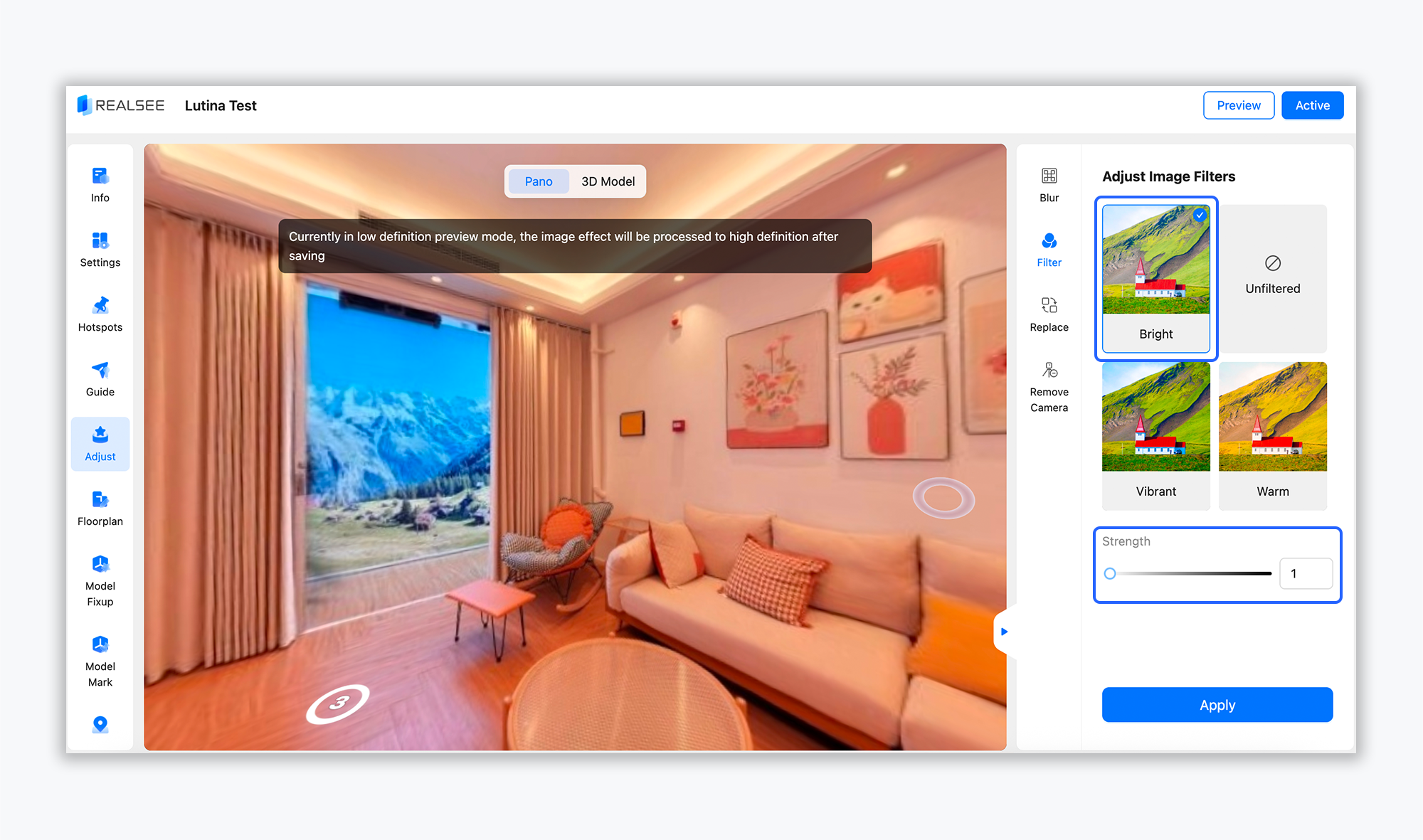
The Filter function enables users to adjust the color and lighting effects of VR panoramic images. Adjustments can be applied to a single point or all points.
Adjustable Image Filter Options
- Bright
- Vibrant
- Warm
Detailed Steps
- Click Adjust to enter the Filter editing function.
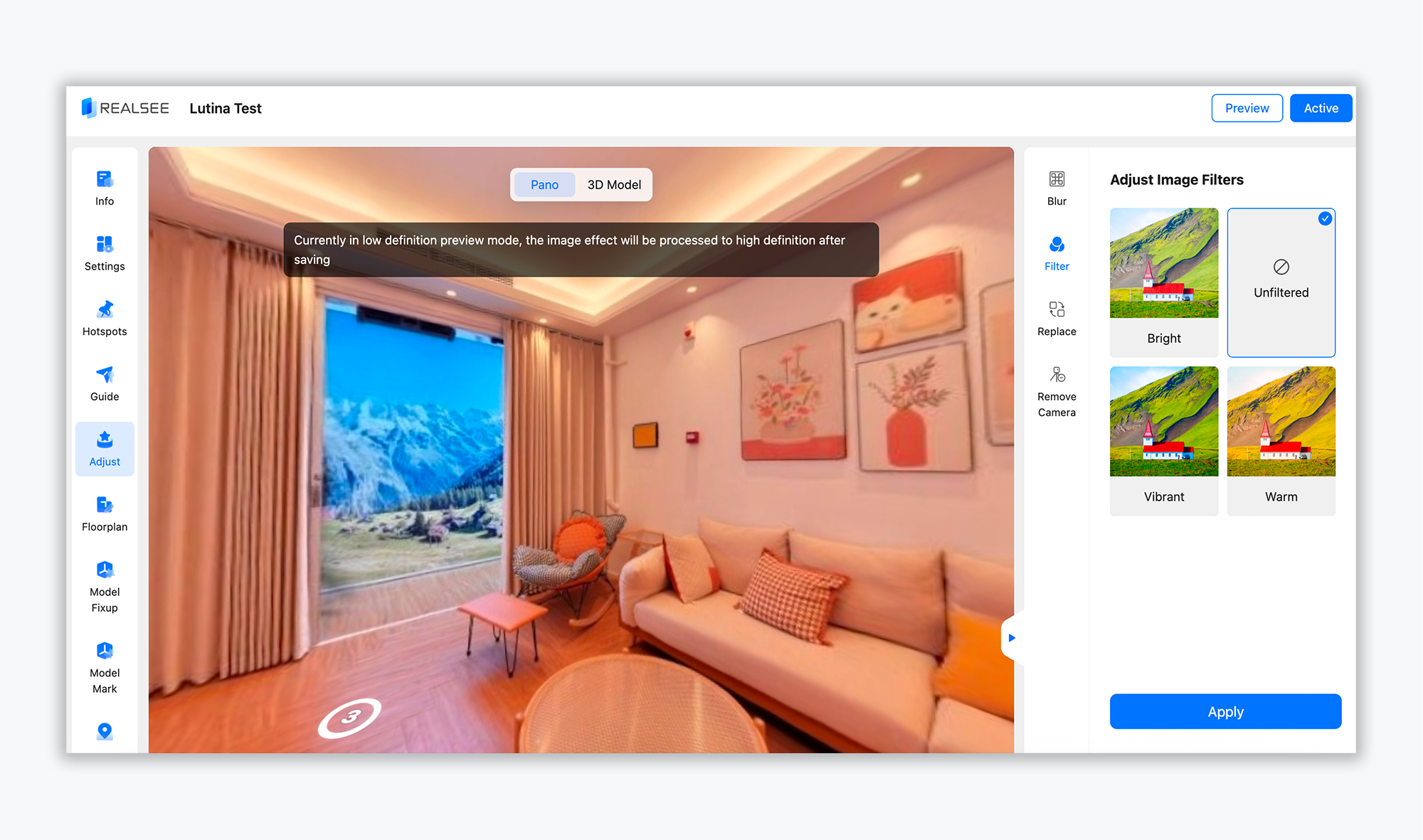
- Select the desired effect(s), and you can adjust the effect intensity as needed.
- After finalizing the adjustments, click Apply in the bottom-right corner.